



A menu bar app for macOS

Scribble on it.
Paste it back.

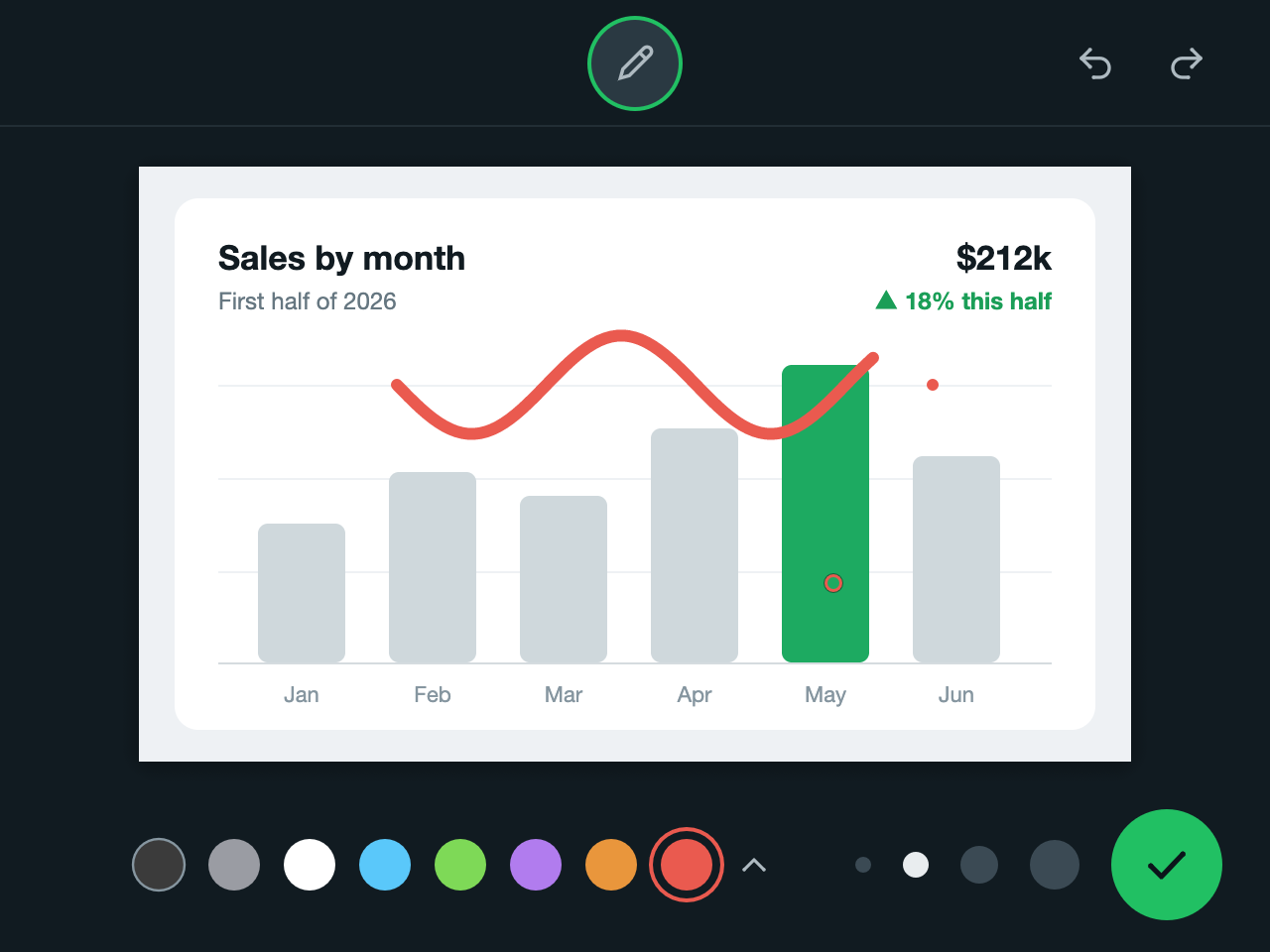
Press ⌃⇧E and the image on your clipboard opens in an editor just like WhatsApp's. Scribble, hit ↩, and it's back on your clipboard, ready for ⌘V.

Free and open source · macOS 12+ · Apple silicon & Intel

The Rabisco editor: a sales chart gets circled in red and copied Rabisco Sales by month First half of 2026 $212k ▲ 18% this half JanFebMar AprMayJun Copied. Just paste it!

From screenshot to ⌘V in four steps

  1. ⇧⌘4

    Take a screenshot

    Hold ⌃ while you select and it goes straight to the clipboard. “Copy Image” in a browser or ⌘C on an image file in Finder work too.

  2. ⌃⇧E

    Open Rabisco

    E for edit. Your fingers are already on ⌃ and ⇧: let go of ⌘ and press E. The editor opens with the image on the clipboard.

  3. Scribble

    Eight colors in the bar, 24 more behind the arrow, and four stroke widths. ⌘Z undoes, ⇧⌘Z redoes.

  4. ↩

    Paste it anywhere

    The scribbled image goes back to the clipboard at full resolution. ⌘V into WhatsApp, Slack, email…

Small, fast, and asks for nothing

  • No permissions needed

    ⌃⇧E works from any app, without granting Accessibility or Screen Recording access.

  • Full resolution

    Copies PNG and TIFF without losing a pixel and keeps the DPI, so Retina screenshots paste at the right size in Notes, Keynote and Pages.

  • What you see is what you paste

    Strokes are vectors, redrawn at the image's resolution when copying, by the same code that draws them on screen.

  • Light when idle

    It sits quietly in the menu bar. The window and the GPU only exist while you're scribbling.

  • Light and dark

    Colors follow your macOS appearance, with the same palette as WhatsApp's photo editor.

  • Open source

    Written in Rust with egui, wgpu (Metal) and tiny‑skia. MIT licensed, with the code on GitHub.

Editor shortcuts

↩ ⌘S ⌘CCopy to the clipboard and close
esc ⌘WDiscard (if you've drawn something, press esc twice)
⌘ZUndo the last stroke
⇧⌘Z ⌘YRedo

Install

Download the app

  1. Download Rabisco.dmg and open it.
  2. Drag Rabisco into Applications, then open it from there.
  3. On first launch, macOS says it can't verify the app, because it isn't signed by Apple. Go to System Settings → Privacy & Security and click Open Anyway.

That's it: the dog shows up in the menu bar, and Rabisco starts with your Mac from now on.

Build from source

Requires Rust. The script builds the app, installs it in Applications and turns on launch at login.

Terminal
git clone https://github.com/victorlcampos/rabisco.git
cd rabisco
./scripts/install.sh

The app's interface is in Brazilian Portuguese for now. To stop it from starting with your Mac, uncheck Abrir ao iniciar o Mac in the dog's menu. To remove everything, run ./scripts/uninstall.sh from the source folder.

Why a dog?

Rabisco is Portuguese for “scribble”, and rabo means “tail”. So the mascot is a dog that paints with its tail.